Why Is Your Laptop Slow or Overheating? The Real Causes and Fixes
A laptop that used to open apps instantly now takes thirty seconds to load a browser. Or maybe it runs fine for twenty minutes and then the fan kicks into a roar and the bottom gets uncomfortably warm on your lap. These two problems, slowness and heat, are often connected, and they almost always have identifiable causes rather than just being a sign your laptop is old and done.
Here is what is actually happening inside your machine, what you can try yourself, and when the issue is serious enough to need professional attention.
The Quick Answer
Slow performance is most often caused by too many background programs, a nearly full storage drive, too many browser tabs, malware, or an aging hard drive struggling to keep up. Overheating is most often caused by dust blocking the internal fans and vents, dried out thermal paste after two to three years of use, or the laptop being used on a soft surface like a bed or a couch that blocks airflow from underneath. The two problems frequently show up together, because a laptop working overtime to manage too many processes also generates more heat, and a laptop that is overheating will automatically slow itself down to protect its components.
Why Your Laptop Is Running Slow
Too many programs starting automatically
Every app you install has a habit of asking to launch automatically when your laptop boots. Over a year or two, this list quietly grows until ten or fifteen programs are all competing for memory and processing power before you have even opened anything yourself. Checking your task manager or startup settings and disabling anything you do not need running constantly is often the single fastest fix available.
A storage drive that is nearly full
Both traditional hard drives and solid state drives slow down noticeably once they pass roughly 85 to 90 percent capacity. The system needs breathing room to manage temporary files and virtual memory, and a nearly full drive has nowhere to put them efficiently. Clearing out old downloads, duplicate photos, and unused applications frequently restores speed without touching a single setting.
Browser tabs and extensions
A browser with thirty open tabs, several of which are auto-refreshing news sites or social media feeds, can consume more memory than every other program on the laptop combined. Browser extensions add to this quietly in the background even when you are not actively using them.
Malware or unwanted background software
Slowness that appeared suddenly, especially alongside pop-ups, a change in your browser's homepage, or your fan running even when the laptop is idle, is a strong signal of malware or an unwanted background process. A full scan with reputable antivirus software is worth running before assuming the hardware itself is the problem.
An aging or failing storage drive
If your laptop takes an unusually long time to boot, freezes when opening large files, or shows longer and longer waits over several months rather than a single sudden slowdown, the drive itself may be reaching the end of its usable life. This is a hardware issue that software fixes will not resolve, and it deserves a proper check before it fails completely and takes your files with it.
Outdated software or operating system
Running an operating system or drivers that have not been updated in a long time can leave performance improvements and bug fixes on the table that Windows or macOS has already released. Checking for and installing pending updates is a simple step that is easy to overlook.
Why Your Laptop Is Overheating
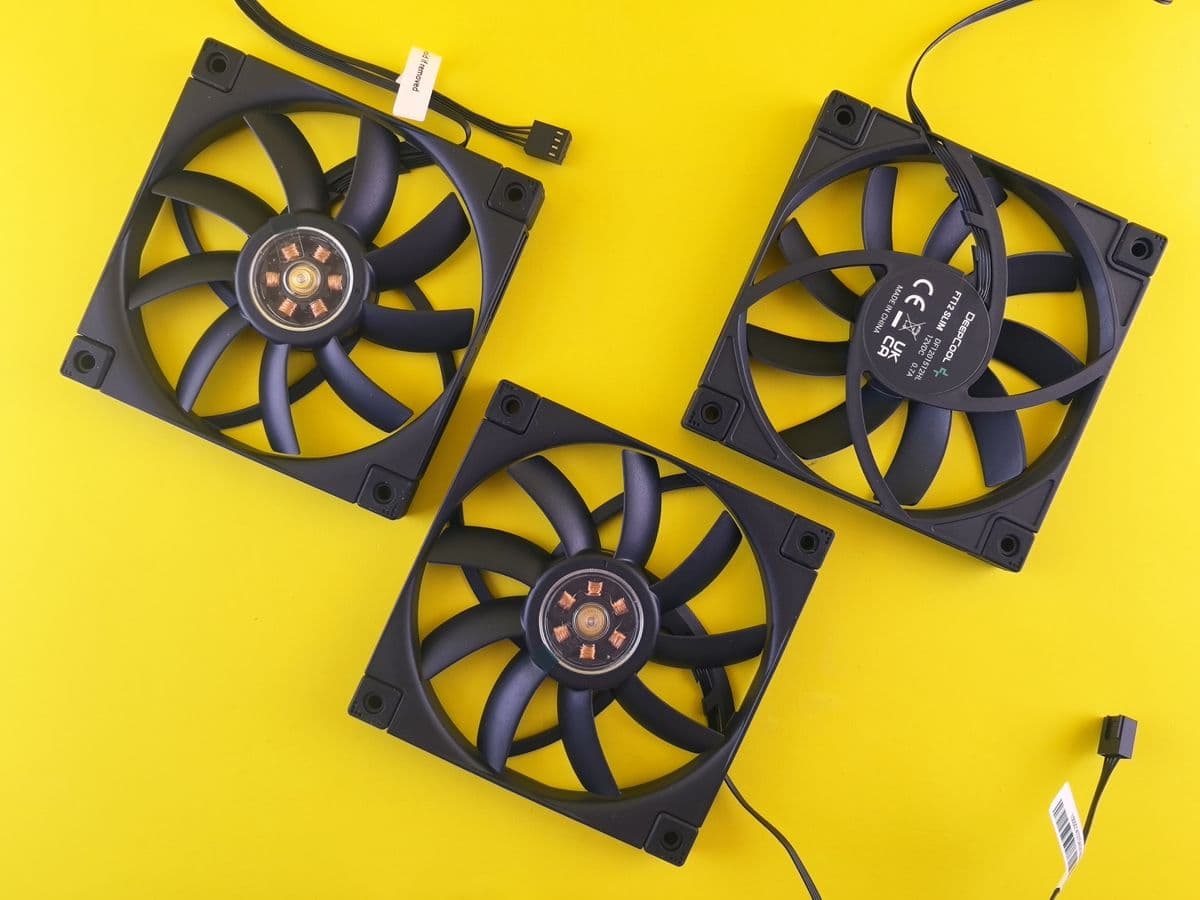
Dust blocking the fans and vents
This is the single most common cause of laptop overheating, and it has nothing to do with the age or quality of the machine. Fine dust, and in Dubai specifically, fine airborne sand and dust, gets pulled into the cooling system by the fan and gradually builds up on the blades and heat sink fins. Within a year or two of regular use, this buildup can be severe enough to choke airflow almost completely.
Dried out thermal paste
Thermal paste is the material between your processor and its heat sink that helps transfer heat away efficiently. It dries out and loses effectiveness after roughly two to three years, even with light use. Once this happens, the processor runs hotter for the exact same workload it always handled comfortably before.
Using the laptop on soft surfaces
Beds, couches, pillows, and even your lap block the intake vents most laptops have on their underside. This alone can push internal temperatures up significantly, even on a laptop that is otherwise in perfect condition.
Running demanding programs for extended periods
Video editing, gaming, or running multiple resource-heavy applications at once will generate more heat than everyday browsing and document work, regardless of how well maintained the laptop is. Some heat under heavy load is completely normal.
Poor ventilation in the room itself
A laptop working hard in a room with air conditioning turned off, or placed directly in sunlight near a window, has to fight a warmer ambient environment on top of its own internal heat. This matters more in Dubai's climate than in cooler regions.
What You Can Try Before Booking a Repair
- Restart the laptop fully rather than just closing the lid, since sleep mode does not clear temporary memory the way a full restart does
- Check startup programs and disable anything unnecessary
- Free up storage space, aiming to keep at least 15 to 20 percent of the drive empty
- Run a full malware scan with updated antivirus software
- Use the laptop on a hard, flat surface, and consider a cooling pad for heavy use sessions
- Check for pending operating system and driver updates
- Physically inspect and gently clean external vents with compressed air if you are comfortable doing so
These steps resolve a large share of slowdowns and mild overheating issues without needing to open the laptop at all.
When It's Time to See a Professional
Some signs point to something compressed air and a fresh restart will not fix.
The laptop shuts down unexpectedly under normal use
This usually means internal temperatures are hitting a safety threshold that forces an automatic shutdown to protect the components, which points to a deeper cooling issue than surface dust.
Fan noise is constant and loud even when idle
A fan working overtime just to keep the laptop at rest, rather than under load, often signals a fan bearing issue or thermal paste that needs replacing.
The bottom of the laptop is hot to the touch within minutes of turning it on
This is a stronger signal than gradual warming over an hour of use, and often points to a blocked internal heat sink.
Performance keeps degrading over weeks despite cleaning up software
If storage is not the issue and background programs are under control, but the laptop keeps getting slower month over month, the drive itself may be the underlying cause.
You hear clicking, grinding, or unusual noises from inside the laptop
This is a sign specifically associated with a failing hard drive, not overheating, and it means your files could be at risk. Backing up immediately and getting the drive checked takes priority over anything else on this list.
A proper internal cleaning, thermal paste replacement, and diagnostic through professional laptop repair in Dubai can resolve issues that surface-level fixes cannot reach, and can catch a failing component before it causes permanent data loss.
Frequently Asked Questions
Why did my laptop suddenly get so slow?
A sudden slowdown, as opposed to a gradual one, often points to malware, a specific program that has started misbehaving, or a storage drive nearing capacity. A gradual slowdown over months is more often linked to accumulated background programs or an aging hard drive.
Is it normal for a laptop fan to run loudly sometimes?
Yes, brief loud fan activity during demanding tasks like video calls, gaming, or software updates is normal. A fan that runs loudly constantly, even during light use or when the laptop is idle, is not normal and is worth investigating.
Can dust really cause a laptop to overheat that much?
Yes. Dust buildup on internal fan blades and heat sink fins can reduce airflow so significantly that a laptop running the exact same software will run considerably hotter than it did a year earlier, purely due to blocked ventilation.
Will restarting my laptop actually help with slowness?
Often, yes, more than people expect. A full restart clears out accumulated background processes, memory leaks, and temporary files in a way that simply closing the lid into sleep mode does not.
How often should a laptop be cleaned internally?
Once every twelve to eighteen months for typical home or office use is a reasonable guideline, though laptops used in dustier environments or on soft surfaces frequently may benefit from more regular cleaning.
My laptop is slow and making a clicking noise, what should I do?
Stop relying on it for anything important immediately and back up your files if you are still able to access them. A clicking noise combined with slowness is one of the more recognized warning signs of a failing hard drive, and the priority at that point is protecting your data. If the laptop has already become difficult to access, recovering the data first before any other repair work is usually the right approach, since a drive in this state can fail completely without further warning.
The Bottom Line
Most laptop slowness and overheating comes down to a short list of causes, background software, storage capacity, dust, and aging thermal paste, and a good number of them can be improved with steps you can take yourself. When the problem persists despite trying the basics, or when you notice warning signs like unusual noise or unexpected shutdowns, it is worth getting the laptop looked at properly rather than letting a minor issue turn into a lost hard drive.
If your laptop is showing any of the more serious signs above, you can book a diagnostic and get a clear answer on what is actually happening inside the machine.