iPhone Stuck on Apple Logo? Here's What to Try First
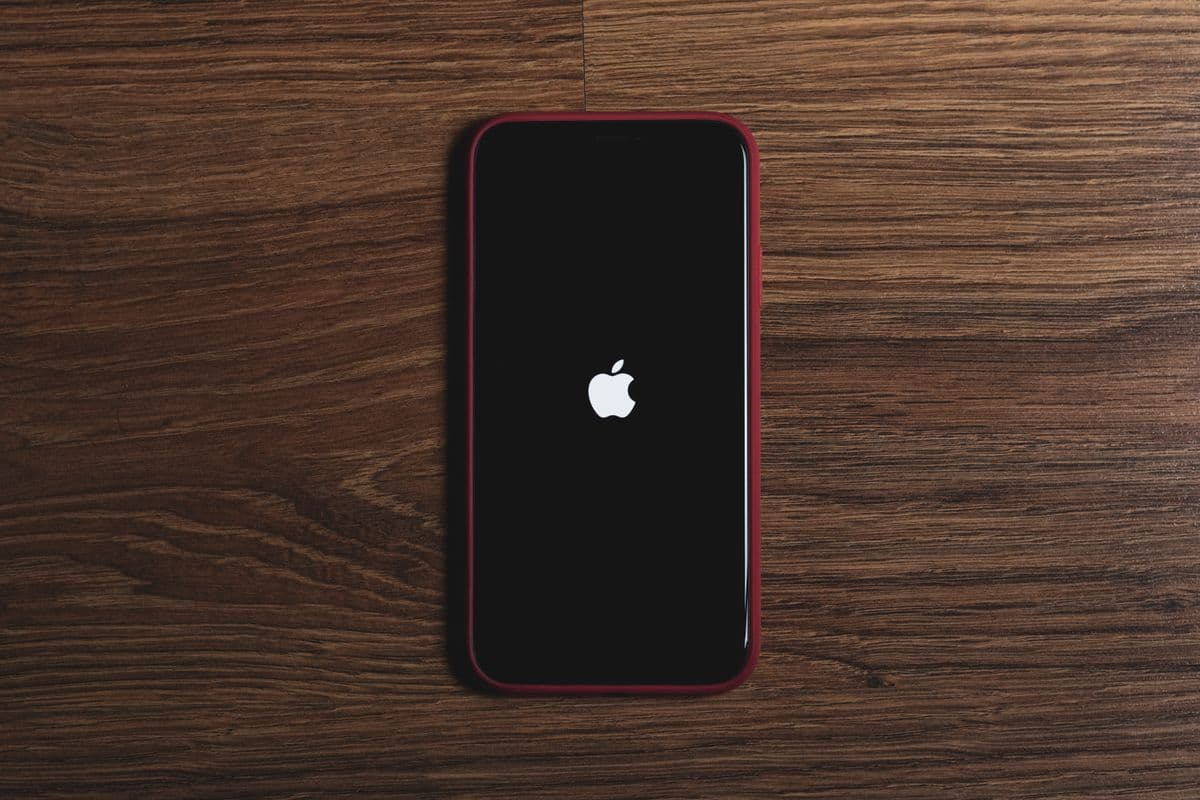
An iPhone stuck on the Apple logo is almost always a software issue, not a dead phone, and the fix depends on how far you push it. Start with a force restart, which resolves the majority of cases without touching any data. If that fails, charge the phone for at least thirty minutes before trying again, since a drained battery alone can cause this. Recovery mode comes next and can usually reinstall iOS without erasing anything, while DFU mode is the deepest software fix but wipes the device. If none of these work, the cause is very likely hardware rather than software, and that is where a proper diagnosis matters.
Few things are more unsettling than watching your iPhone sit frozen on the Apple logo, especially when you need it for work, navigation, or simply staying in touch. The good news is that this is one of the more fixable problems an iPhone can have, and in most cases it never reaches the point of needing a repair at all. Working through the right steps in order, rather than jumping straight to the most drastic option, gives the phone the best chance of recovering without losing anything.
Step 1: Try a Force Restart First
A force restart, sometimes called a hard reset, does not erase any data and simply forces the phone to reboot cleanly. On an iPhone 8 or later, press and quickly release Volume Up, press and quickly release Volume Down, then press and hold the Side button until the Apple logo appears again. On an iPhone 7 or 7 Plus, hold Volume Down and the Side button together until the logo shows. On an iPhone 6s or earlier, hold the Home button and the Power button together.
This single step clears a stuck process in a large share of cases, particularly when the freeze happened on its own rather than right after an update.
Step 2: Charge It Before Trying Anything Else
A battery that is more deeply drained than it appears can cause the phone to lose power mid-boot, which looks identical to a software freeze. Plug the iPhone into a wall charger, not a computer, using the original cable if possible, and leave it for at least thirty minutes before attempting another force restart. This alone resolves a surprising number of cases, especially on phones that sat unused for a while before the problem appeared.
Step 3: Use Recovery Mode Without Losing Data
If a force restart and charging do not help, Recovery Mode is the next step and can often reinstall iOS cleanly without erasing your data, which matters most if the freeze happened after a failed software update. Connect the iPhone to a computer, perform the same force restart button sequence for your model, but keep holding the final button past the point where the Apple logo would normally appear, until the Recovery Mode screen shows instead. From there, choosing to update rather than restore gives the best chance of fixing the issue without wiping the phone.
Step 4: DFU Mode as a Last Software Option
Device Firmware Update mode, known as DFU mode, is the deepest software level fix available and is timing sensitive to enter correctly. Unlike Recovery Mode, DFU mode generally does erase the device, so it is worth treating as a final option once Recovery Mode has already been tried and failed, rather than a first resort.
What a Loading Bar or Spinning Wheel Usually Means
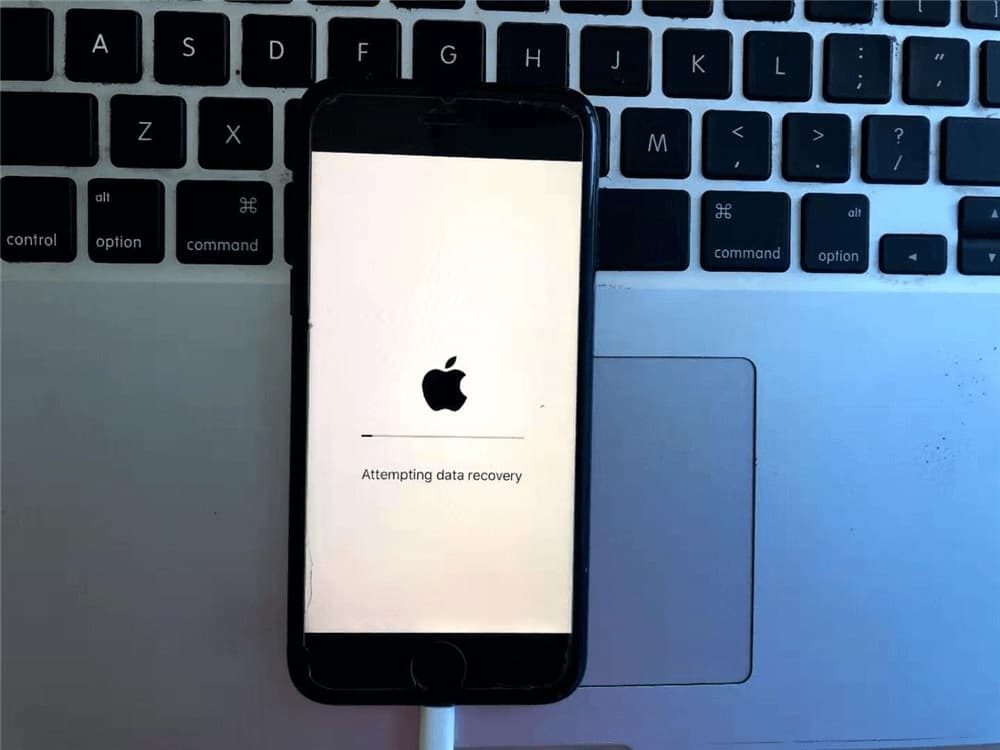
If the Apple logo appears alongside a thin loading bar underneath it, the phone is often mid-update and simply needs more time, sometimes up to an hour, before intervening with anything else. A spinning wheel beneath the logo without a loading bar more often points to a stuck process that a force restart typically clears right away.
When It's Likely Hardware, Not Software
| Scenario | Likely Cause | What It Usually Means |
|---|---|---|
| Force restart and charging both fail | Could still be software or early-stage hardware | Try Recovery Mode next |
| Recovery Mode fails to complete | Possible corrupted boot image or hardware fault | Worth a proper diagnosis before DFU |
| Phone was recently dropped or exposed to liquid | Likely hardware related | Diagnosis needed, software fixes unlikely to help |
| DFU mode also fails to revive the phone | Hardware fault, often logic board related | Component level repair required |
| Phone gets warm or makes unusual sounds while frozen | Possible battery or hardware fault | Stop attempting resets, get it checked |
Why Repeated Resets Aren't a Harmless Habit
Cycling through force restarts and recovery attempts over and over without success rarely makes the underlying problem worse on its own, but it does waste time if the actual cause is hardware related, such as a battery issue, liquid exposure, or a logic board fault that no amount of software troubleshooting will resolve. If the phone was recently dropped, got wet, or shows any physical sign of damage, it is worth skipping straight to a proper diagnosis rather than working through every software step first.
What to Expect at NexaFix
NexaFix offers a free diagnosis for an iPhone stuck on the Apple logo, checking whether the cause is software, battery, or a deeper hardware fault before recommending any repair. This same order of diagnosis, starting with the simplest explanation and working toward hardware only when needed, is the same approach our technicians use fora MacBook that won't turn on, since the underlying logic of ruling out the easy causes first applies across devices.
OuriPhone repair service covers battery, charging, and logic board issues for phones that software troubleshooting alone cannot fix, with a clear explanation of the actual cause before any work begins.
Frequently Asked Questions
Will a force restart delete my photos or data?
No, A force restart, also called a hard reset, simply reboots the phone and does not erase any content, apps, or settings.
My iPhone has been frozen on the Apple logo for over an hour. Should I keep waiting?
If there is a visible loading bar, waiting up to an hour is reasonable since it usually means an update is still in progress. Without a loading bar, or if an hour has already passed, moving on to Recovery Mode is the better next step.
Is it safe to try Recovery Mode myself?
Yes, Recovery Mode is designed to be used by anyone and, when you choose to update rather than restore, it typically does not erase your data. DFU mode carries more risk and is less commonly needed.
What if my iPhone is stuck on the Apple logo right after I dropped it?
This points more strongly toward a hardware cause than a software one, and working through software fixes is less likely to help. A diagnosis will identify whether the issue is a loose connection, battery damage, or something more serious.
How do I know if the problem is the battery rather than iOS itself?
If charging the phone for thirty minutes before attempting a force restart resolves the issue, the battery was likely too drained to complete the boot process. If the same freeze happens again shortly after, with the phone showing a full charge, the cause is more likely software or hardware related rather than battery charge level.
The Bottom Line
An iPhone stuck on the Apple logo is rarely a dead phone, and working through force restart, charging, and Recovery Mode in that order resolves the overwhelming majority of cases without losing any data. When none of these steps help, or the phone shows signs of physical damage, that is the point to stop guessing and get a proper diagnosis instead.
If your iPhone is still frozen after trying these steps,book a free diagnosis with NexaFix and find out exactly what's keeping it from starting up.