Is It Worth Upgrading Your Laptop's SSD and RAM, or Buying New?
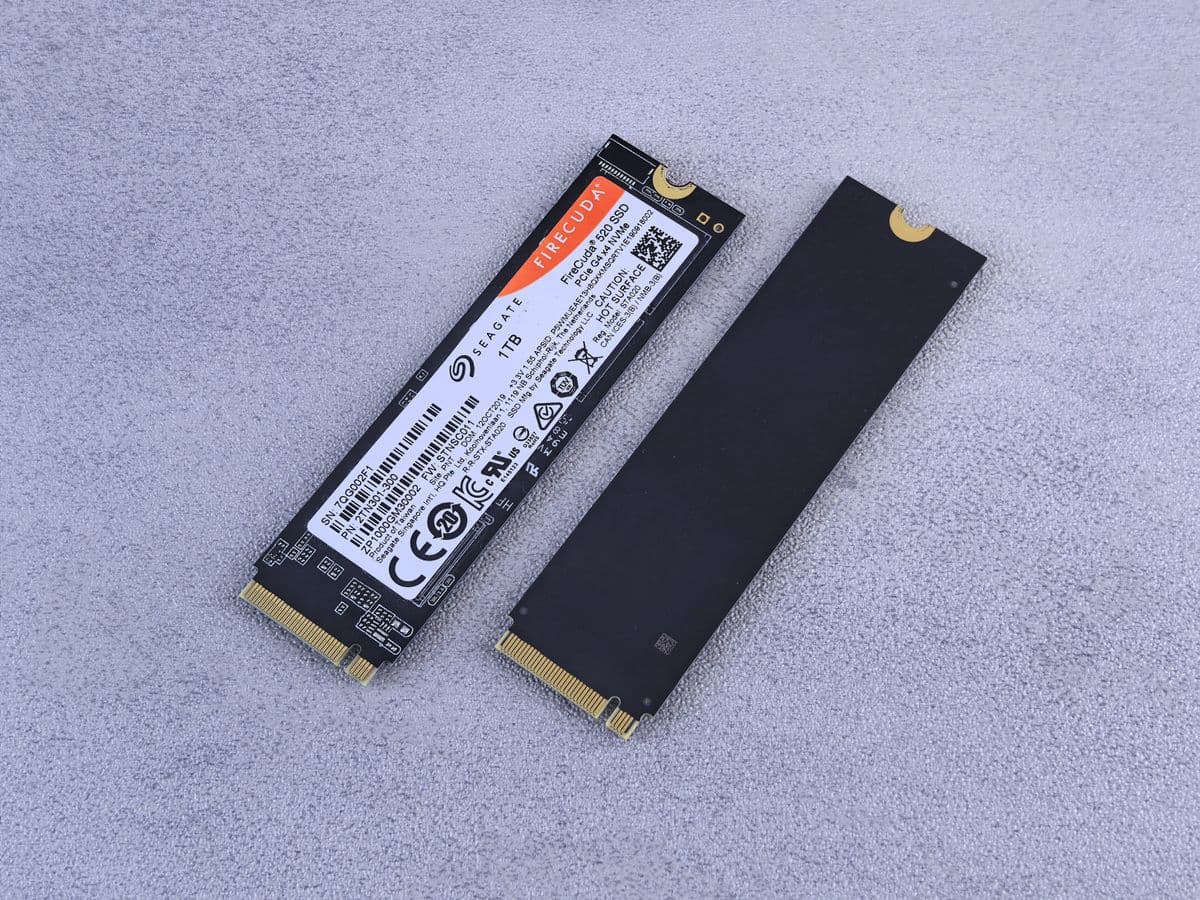
For most laptops between two and six years old, an SSD upgrade alone can cut boot and load times by more than half, and adding RAM on top of that fixes the lag that shows up when several programs or browser tabs are open at once. Together, these two upgrades typically cost a fraction of a new laptop and can realistically extend a laptop's useful life by two to four more years, as long as the processor itself is still reasonably capable.
A laptop that feels slow does not automatically need replacing. In a large number of cases, the actual bottleneck is an aging hard drive or insufficient memory rather than the processor itself, and both of those are fixable without buying anything new. This guide walks through when an upgrade genuinely makes sense, what kind of improvement to expect, and when it is better to put that money toward a replacement instead.
Why Laptops Slow Down Even When the Processor Is Fine
The storage drive becomes the bottleneck
A traditional hard drive reads and writes data mechanically, which is dramatically slower than a solid state drive with no moving parts. As software updates and applications grow larger over time, an old hard drive that felt adequate years ago becomes the single biggest thing holding the whole system back, regardless of how capable the processor is.
Not enough memory forces constant swapping
When a laptop runs out of available memory, it starts using the storage drive as a substitute, which is far slower than actual memory and causes the noticeable lag and freezing that happens when too many programs or browser tabs are open at once. Adding memory removes this bottleneck directly.
Years of accumulated software slow down an otherwise capable machine
Startup programs, background processes, and general software clutter build up over time and affect any laptop, but their impact is far more noticeable on a machine already struggling with a slow drive or limited memory.
How Much Faster Does an SSD Upgrade Actually Make a Laptop?
The most noticeable improvement from an SSD upgrade is boot time and application launch speed. A laptop that previously took a minute or more to fully start up often boots in a fraction of that time after the switch, and opening large applications like design or video editing software becomes noticeably quicker as well. General responsiveness while switching between tasks improves significantly, since the drive is no longer the limiting factor.
| Task | Typical Hard Drive | Typical After SSD Upgrade |
|---|---|---|
| Cold boot to desktop | 60 to 90 seconds | 10 to 20 seconds |
| Opening a large application | Slow, noticeable delay | Near instant to a few seconds |
| Copying large files | Slow, can bottleneck other tasks | Significantly faster |
| General responsiveness | Lag when multitasking | Smooth under normal use |
These figures vary depending on the specific laptop and drive, but the direction of improvement is consistent across almost every case involving a switch from a traditional hard drive to a solid state drive.
When Is a RAM Upgrade Worth Adding On Top?
An SSD upgrade alone solves most speed complaints, but if a laptop still struggles specifically when multiple applications or many browser tabs are open at once, insufficient memory is usually the remaining bottleneck. This is common for anyone doing design work, video calls alongside other applications, or simply keeping a large number of tabs open throughout the day. Adding memory alongside an SSD upgrade addresses both the startup speed problem and the multitasking lag in a single visit.
When an Upgrade Makes Sense, and When It Doesn't
Good candidates for an upgrade
A laptop between two and six years old with a still capable processor, where the main complaint is slow boot times, slow application loading, or lag when multitasking, is usually an excellent candidate for an SSD and RAM upgrade. The processor is the one component that cannot be upgraded on most laptops, so if it was reasonably capable when new, our device upgrades team can often make the laptop feel new again for a fraction of the cost of a replacement.
When replacement makes more sense instead
If the processor itself is several generations old and struggles even with lighter tasks, or if the laptop has multiple hardware issues beyond just speed, an upgrade addresses only part of the problem and the overall experience may still fall short of what a new laptop would offer. In these cases, it is worth discussing honestly during a diagnosis whether an upgrade is the right call or whether that money is better spent toward a replacement.
What Happens to Your Files During an Upgrade?
One of the most common concerns with a storage upgrade specifically is losing everything on the old drive. In practice, a proper upgrade involves cloning the entire contents of the old drive onto the new one before anything is removed, meaning your desktop, applications, settings, and files are exactly where you left them once the upgrade is complete, just running considerably faster. It is still good practice to have a backup of anything irreplaceable before any hardware work, simply as a precaution.
Why Upgrading Instead of Replacing Also Reduces Waste
Beyond the cost savings, extending a working laptop's life by two to four years through an upgrade rather than replacing it outright means one less device ending up discarded before it truly needed to be. For a laptop that is otherwise in good physical condition, an upgrade is often the more sensible choice both financially and practically, especially when the only real complaint is speed rather than a fundamental hardware limitation. If accumulated software clutter turns out to be part of the problem too, a software service visit alongside the upgrade clears that out at the same time.
What to Expect at NexaFix
NexaFix offers a free assessment to identify exactly where a laptop's slowdown is coming from before recommending any upgrade, including a check of the current drive, available memory, and overall processor capability. If an SSD or RAM upgrade is the right fit, the process includes a full clone of your existing drive so nothing is lost, with most upgrades completed the same day.
Frequently Asked Questions
How do I know if my laptop needs an SSD upgrade or a full replacement?
If the laptop is generally responsive but slow specifically at startup or when opening applications, an SSD upgrade is likely to make a significant difference. If the whole system feels sluggish even during basic tasks with nothing else running, a full assessment is worth getting before deciding, since the processor itself may be the limiting factor.
Will an SSD upgrade work on any laptop?
Most laptops from the last several years support an SSD upgrade, though the exact type of drive needed depends on the model. A quick compatibility check before purchasing any parts avoids buying the wrong drive for your specific laptop.
How much RAM should I add if I decide to upgrade?
This depends on what the laptop is used for and how much memory it currently has. A proper assessment will look at your specific usage pattern, whether that is general browsing, office work, or more demanding tasks like design or video editing, to recommend an amount that actually addresses the slowdown you are experiencing.
Will I lose my files or have to reinstall everything after an upgrade?
No, not with a proper upgrade process. The existing drive is cloned onto the new one, so your files, applications, and settings remain exactly as they were, just running noticeably faster.
How long does an SSD and RAM upgrade take?
Most upgrades, including the drive cloning process, are completed within the same day, depending on how much data needs to be transferred from the original drive.
The Bottom Line
A slow laptop is not automatically a laptop that needs replacing. In a large number of cases, an aging hard drive or insufficient memory is the real bottleneck, and both are fixable at a fraction of the cost of a new machine. The key is knowing which one actually applies to your laptop before spending money on either an upgrade or a replacement.
If your laptop has been feeling slow, book a free assessment with NexaFix and find out whether an upgrade could get you a few more years out of it before considering anything else.